If an Upwork account is suspended or limited, the first step is to read the notice Upwork sent, check the account health hub, and follow the official next step it shows: a self-service fix, an appeal, or a reply to the Trust and Safety email. A limited account is a notice to act on, not a puzzle to work around. This article explains Upwork's own status labels and the official appeal routes. It does not promise that access will be restored, because Upwork itself does not.
All Upwork rules quoted here come from Upwork Help pages opened on 12 November 2026. Upwork updates these pages, so confirm the current wording before relying on a detail. For how accounts, profiles and verification work in general, see the Upwork account basics.
Read the notice first
Upwork says a suspension or restriction usually comes with two things:
A notification or banner in the account, explaining the reason and offering next steps.
An email explaining the reason and what to do. Upwork advises checking the spam folder if it does not arrive.
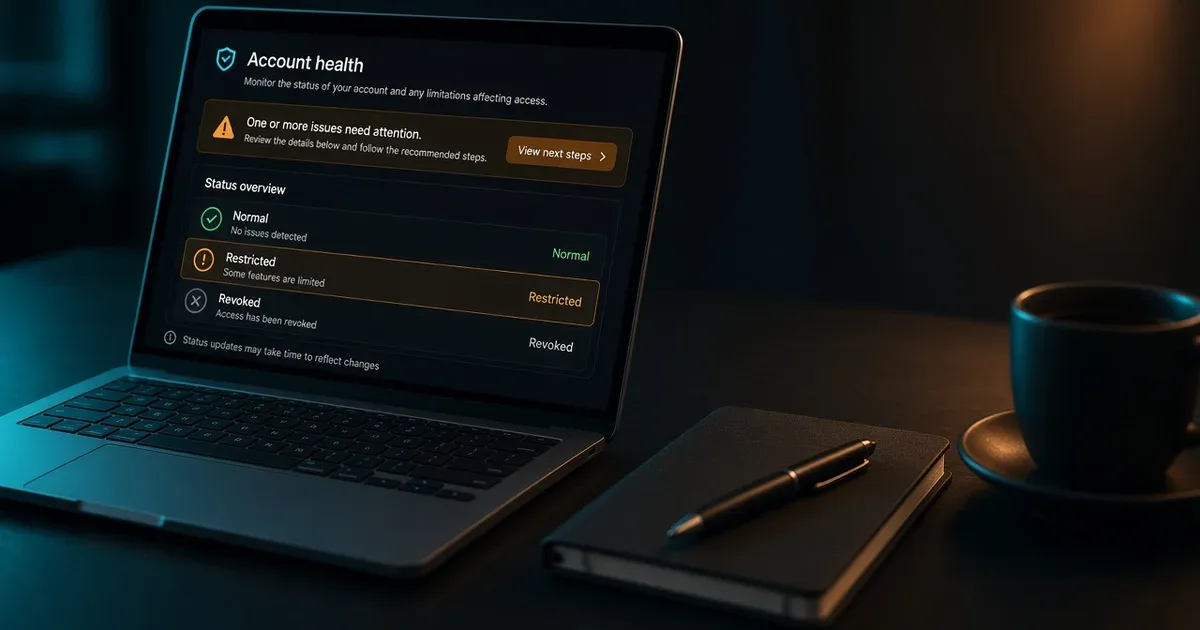
The action also appears in the account health hub, which Upwork describes as the place to see current holds, warnings, restrictions or blocks, policy violations, profile visibility, and the status of Trust and Safety reviews. To open it, click the profile picture thumbnail and select Account health.
Read all three before doing anything else. The reason given decides which path applies.
Upwork account status labels: restricted, revoked, blocked
Upwork uses two sets of labels in the account health hub.
Platform access shows whether the account can use Upwork's features:
Normal: full access to standard features.
Restricted: some features are limited, and action is needed to regain full access.
Revoked: the account is suspended, and an appeal is needed to find out whether access can be restored.
Account standing shows how activity aligns with Upwork's policies: Good, At risk, High risk, and Blocked. Upwork says violations are weighted by type and severity rather than counted as fixed strikes, that violations expire over time, and that it does not share the exact expiry timeline.
Upwork's Trust and Safety page describes three possible responses to a violation: education (a notice, sometimes with content removed or an edit requested), a restriction (limited activity until a self-resumption flow is completed), or a block (permanent removal from the platform for very serious or repeated violations).
What a restriction or block changes
According to Upwork's Trust and Safety page:
Restricted: the freelancer can still log in and manage and complete current work, but cannot submit proposals or start new contracts. The account is reactivated when the problem is fixed and the person commits to following the Terms of Service.
Blocked: contracts are cancelled, and the person cannot post content or interact with other users. In some cases, logging in is prevented entirely.
Suspected fraud: Upwork may prevent use of the account, and in some cases logging in or withdrawing funds, until more information is provided or identity is verified.
Reasons Upwork may give
Upwork says it may suspend or restrict accounts for violations of its Terms of Service, ranging from temporary restrictions that can be resolved by the user to permanent blocks. In the account health hub, it lists the things that can affect platform access:
Identity verification holds
Payment or billing issues
Recent policy violations
Certain compliance checks
The Trust and Safety page summarises the marketplace standards behind these, including using one account, not taking payments or communication off Upwork before a contract is in place, and representing yourself authentically. The full rules are in Upwork's Terms of Service, linked from that page. This article does not reproduce a list of "hidden triggers" from unofficial sources; the notice and the hub are the reliable record of why a specific account was limited.
A scam or a suspicious client is a different matter from an account-status case. If the notice relates to a client's behaviour rather than yours, use Upwork's reporting tools for that client.
Next steps, in order
Upwork's appeal page describes two routes, depending on whether you can still log in.
If you can log in:
Check the suspension banner. It explains the reason and next steps.
Follow any prompts. If the issue can be fixed through self-service, such as verifying identity or updating a payment method, Upwork guides you through it.
If needed, submit an appeal from the banner.
If you cannot log in:
Reply to the suspension email. Upwork's Trust and Safety page calls this the fastest way to reach the team and says replies typically get a response within 48 hours.
Or submit an appeal using Upwork's official appeal form, which only loads for suspended accounts.
After an appeal, Upwork says the status can be tracked in the Appeals Tracker or the account health hub, Trust and Safety reviews the case and emails a final decision, and most appeals are reviewed within two business days.
Upwork also states that appeals succeed only when they show a mistake was made, or provide new, relevant information that materially changes the facts. An appeal that only expresses disagreement is unlikely to succeed. Write the appeal around facts and evidence: what happened, what has been corrected, and any documents that support it.
One special case: Upwork says accounts suspended for ongoing concerns about client feedback must wait six months before submitting an appeal.
What not to do while the case is open
Upwork's pages name several actions that make things worse:
Do not open a new account. Upwork says opening a new account after a suspension is not allowed and violates its Terms of Service.
Do not move current clients or payments off Upwork. Trust and Safety tells users not to take relationships and payments off the platform when an account is restricted or blocked.
Do not send repeat tickets. Upwork asks people to avoid multiple tickets, because duplicates slow the review.
Do not ignore the self-service flow. If the hub offers a fix, completing it is usually the fastest route back to normal access.
If the activity named is automation
If the notice mentions bots, scripts or automated proposals, read the guide to unapproved automation rules on Upwork, then compare it with the official Help page linked in the notice. Stop the automation before appealing, and say in the appeal what was changed.
After a decision
If access is restored, follow any conditions Upwork states and check the account standing in the hub; Upwork notes that a resolved restriction can still leave the standing "at risk" until the violation expires. If the appeal is denied and Upwork marks the case final, further appeals may be blocked unless new information becomes available. Upwork does not publish a waiting period after which a new attempt is guaranteed, and none is suggested here.
The next step for anyone reading this with a live notice is to open Account health, note the exact status and reason, and follow the official route that matches it.